
When to use an advanced crop
Use PCBOXCROP when the boundary must remain editable in 3D, PCSPHERECROP for a compact object or joint, and PCBUFCROP for a constant-width corridor around a line or polyline. Rectangle, circle, polygon and slice crops remain in the basic crops guide.
Editable box crop
Run PCBOXCROP and select the cloud. If no box exists, PCCTools creates one: around the crop already applied when the clouds are cropped, otherwise around their full bounding box. Drag the face grips to frame the working area — the crop is re-applied after every grip edit, so there is no command to repeat. Running PCBOXCROP again on an existing box offers Modify, Restore, Hide and Delete.
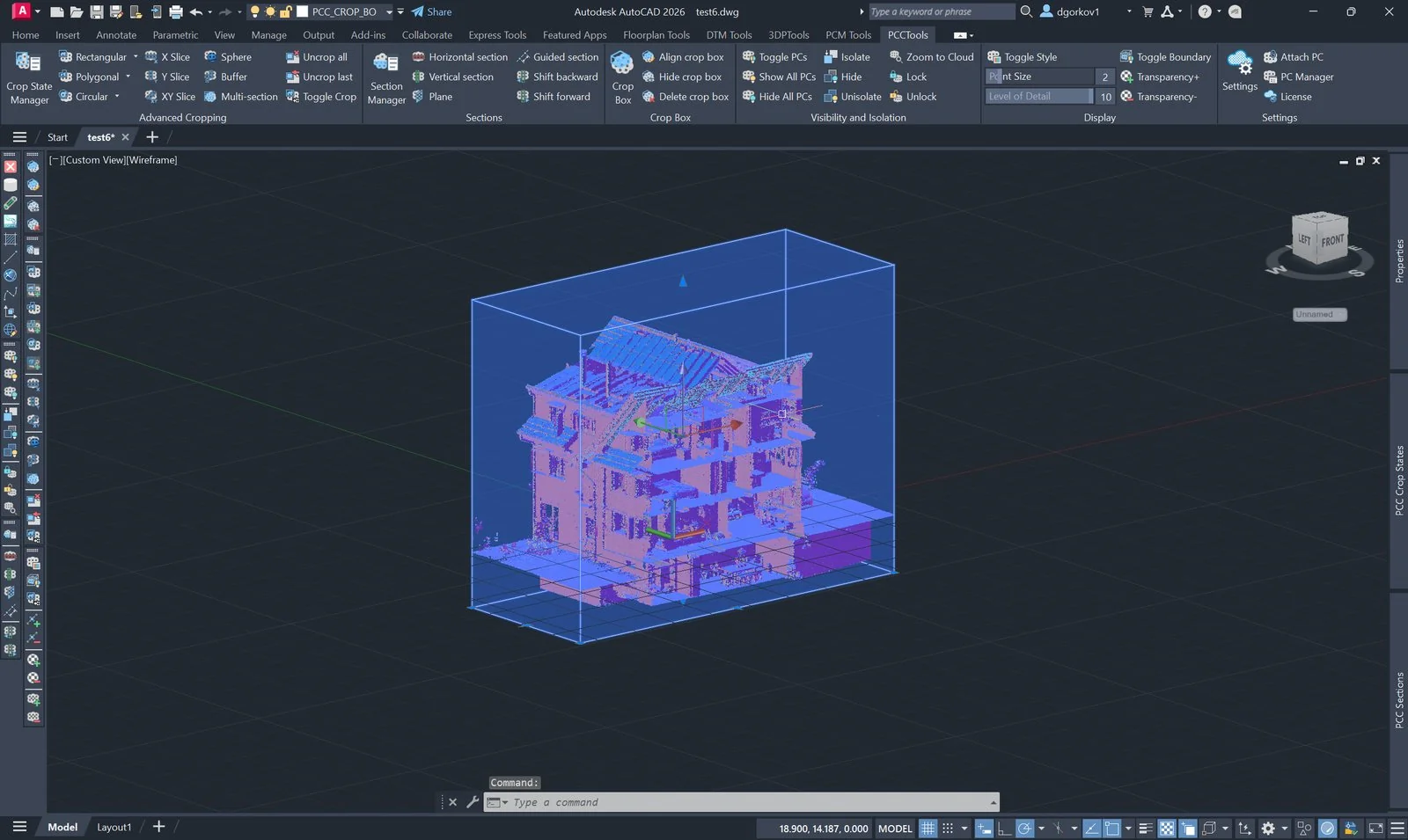
While a box grip is being dragged, polar and ortho snapping are suspended so the face lands exactly where you point. If the box itself is in the way, PCBOXHIDE hides it and keeps the crop; run it again to bring the box back.
Move, rotate and align the box
The crop box behaves like any other object in the drawing, and the crop follows whatever you do to it.
| Command | Action |
|---|---|
ROTATE / 3DROTATE | AutoCAD’s own commands. Turn the box and the crop turns with it; a grip rotate works too. PCCTools measures the box’s real orientation out of its geometry, so a box inherited from a drawing saved earlier is handled correctly as well. |
PCBOXALIGN | Squares the box to the scan by fitting its plan rotation to the cloud. Worth running first on any building that does not sit along the world axes; otherwise every face grip pulls on a diagonal. |
PCBOXHIDE | Hides or shows the box without releasing the crop. |
PCBOXREMOVE | Deletes the box and releases the crop. |
Spherical crop
Run PCSPHERECROP, snap the centre to the scan and set the radius from the live preview. This is well suited to valves, joints, fixtures and other features where a rectangular volume retains too much surrounding data.
Buffer crop along a route
- Run
PCBUFCROP. - Draw a centreline or select an existing line or polyline.
- Move the cursor away from the last point of the centreline — that is where the half-width is measured. The corridor is drawn live and the current half-width is reported as you move.
- Click, or type the value, to crop the full-height corridor. The default comes from Buffer distance in
PCCSETTINGS.
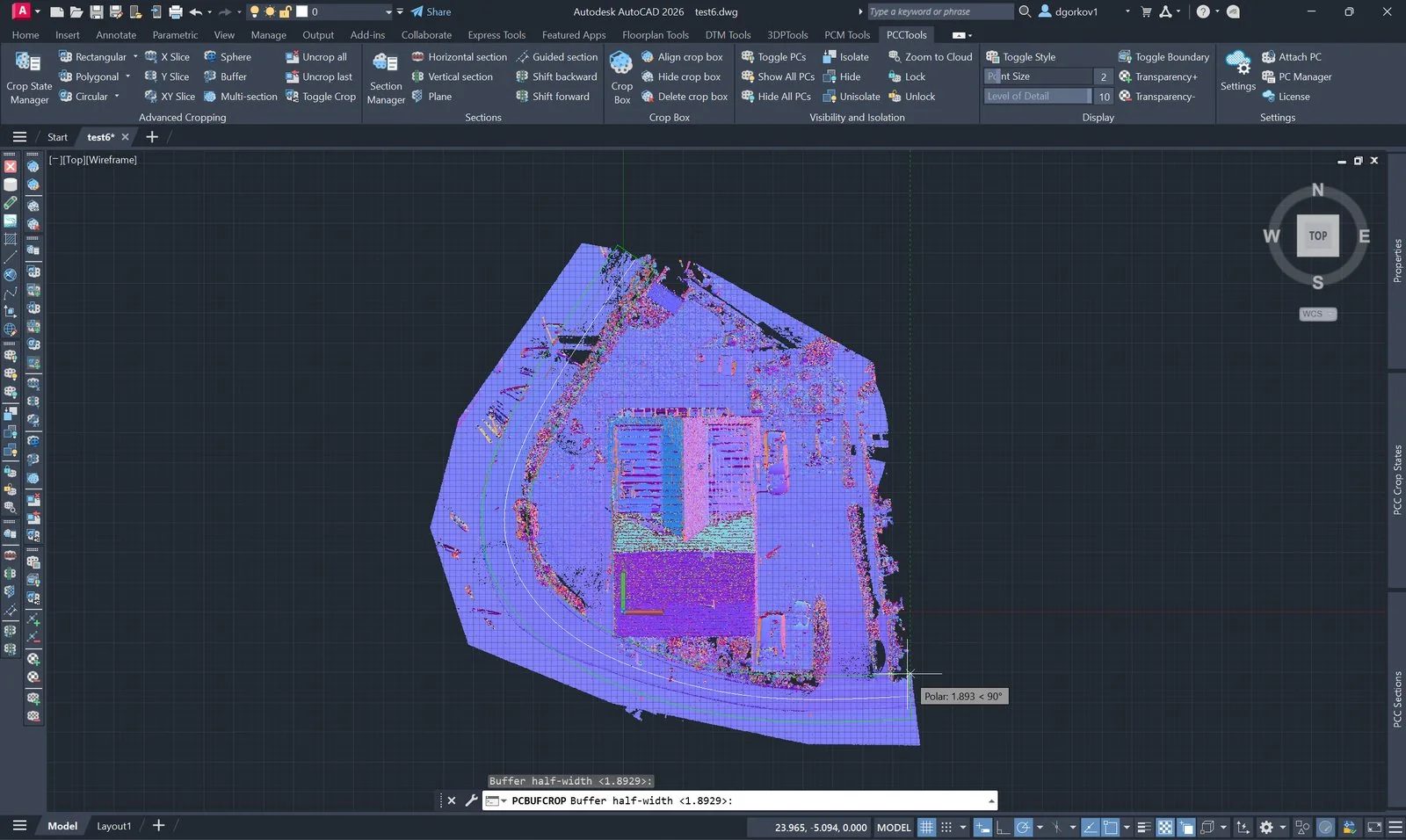
PCBUFCROP in plan: the corridor is drawn around the centreline while the half-width is dragged, and the value can be typed instead.Save useful crop states
Use PCCSSAVE to name the finished crop, or press New crop state in the Crop States panel (PCCROPSTATEMANAGER). Name states after levels, zones or disciplines rather than after the order they were made in. Full detail, including what to do when a scan is attached after a state was saved, is in the crop states guide.